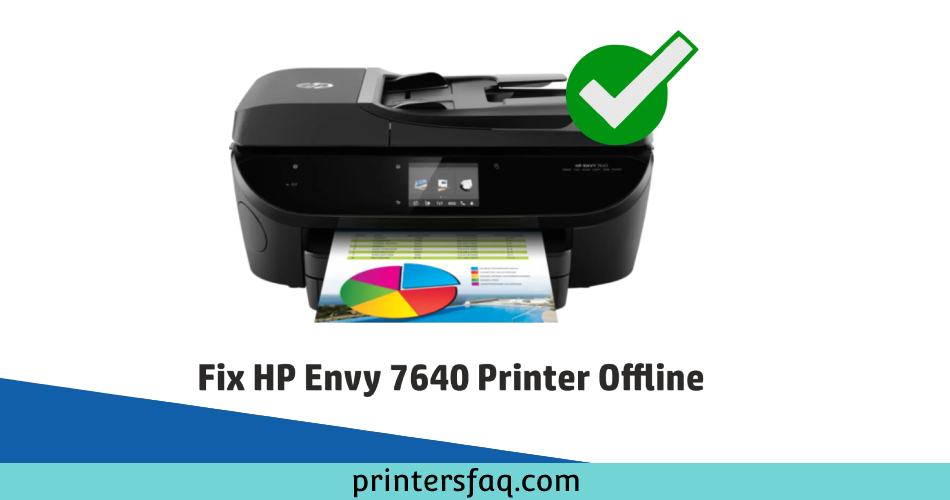
Printers can sometimes be like moody friends! supportive one minute and distant the next. You’re not alone if your HP Envy 7640 Printer suddenly decides to go offline. This hiccup can ruin your day, especially if you’re on a tight deadline. But worry not, as there are methods to bring it back online. This article is your go-to guide to fixing HP Envy 7640 Printer offline issues on both Windows 11 and Mac.
When Do Printers Usually Go Offline?
In This Article
Printers go offline for various reasons:
- Connectivity issues
- Driver problems
- Paper jams
- Outdated firmware
Understanding the root of the issue can make your life a whole lot easier.
The Common Solutions
Here are some common solutions you can apply right now:
Windows 11: Tackle it Through Settings
- Open Settings: Hit the start button, then go to Settings > Devices.
- Printer & Scanners: Find your printer model, click on it, and select Manage.
- Run Troubleshooter: Windows has an in-built troubleshooter. Run it and follow the instructions.

Feeling Adventurous?
Try removing the printer and adding it back. Just remember, it’s a risky move and could cause other issues. So tread carefully.
Mac: A Different Ballgame
- System Preferences: Head over to Apple Menu > System Preferences > Printers & Scanners.
- Check Printer Queue: If documents are stuck in the queue, remove them.
- Add Again: Like in Windows, removing and adding the printer again can often fix HP Envy 7640 Printer offline issues.

Check for Obstructions
It could be as simple as a paper jam or an out-of-place ink cartridge. A quick visual inspection might solve your problem.
The Advanced Troubleshooting Guide
Some issues demand a bit more finesse. This section is for those ready to roll up their sleeves.
Update Your Drivers
Windows 11
- Search for Device Manager.
- Expand the Print Queues section.
- Right-click your printer model, then select Update driver.
Mac
- Apple tends to handle this automatically.
- Manual updates can be accessed via System Preferences > Software Update.
| Operating System | Steps |
|---|---|
| Windows 11 | Device Manager > Print Queues > Update driver |
| Mac | System Preferences > Software Update |
Check Connectivity
Wi-Fi
- Ensure your printer is connected to the right network.
- Restart your router for good measure.
USB
- Try different ports.
- A different cable might solve your issue.
Firmware Update
Manufacturers regularly release firmware updates. Go to the HP website, locate your printer model, and download the latest firmware.
The Last Resort: Contact Support
When all else fails, a chat with customer support might be the only way out.
- Official HP Support: Easiest and most reliable.
- Tech Forums: Reddit’s r/printers is a solid option.
- Local Technician: Sometimes, it’s best to get a hands-on fix.
| Resource | Pros | Cons |
|---|---|---|
| HP Support | Reliable, Tailored | May take time |
| Tech Forums | Quick, Free | Not 100% Reliable |
| Technician | Immediate, Hands-on | Costs money |
Hidden Utilities
Both Windows and Mac have their secret set of printer utilities. These might not be commonly used but can be highly effective.
- Windows: Use the
printmanagement.msccommand to open Print Management. - Mac: Use CUPS (Common Unix Printing System) for advanced settings.
It’s not a walk in the park, but if you’re up for the challenge, these could be your ace in the hole.
Still Showing The Same Error? Follow
By now, you’ve already gone through the fundamental fixes. If your HP Envy 7640 is still offline, take a step back and revisit the basics.
- Power Cycle: Turn off your printer and unplug it. Wait for a minute, then plug it back in and turn it on.
- Network Check: Confirm that other devices can connect to your Wi-Fi network. If not, you know where the problem lies.
- USB Inspection: If connected via USB, make sure the port and cable are in good condition.
Try a Different Device
Sometimes, it’s not your printer, but your computer causing all the trouble. Connecting your printer to a different device can clear this up.
Example: If your printer is usually connected to a Windows laptop, try hooking it up to a Mac or another Windows device. If it works, your original computer might be the culprit.
| Original Device | Substitute Device | Outcome |
|---|---|---|
| Windows Laptop | Mac Laptop | Working? |
| Mac Desktop | Windows Desktop | Working? |
Reconfigure Printer Spooler
If you’re using a Windows computer, meddling with the Printer Spooler service can sometimes do the trick. Here’s how to go about it:
- Run: Open the Run dialog (Win + R) and type
services.msc. - Find Service: Locate “Printer Spooler” in the list.
- Restart: Right-click on it and choose Restart.
The Printer Spooler service handles the printing process, and restarting it could clear any jams in the system.
Spooler Warnings
- Backup: Before making any changes, back up your system.
- Admin Rights: Ensure you have admin rights on your computer.
Manual IP Configuration: A Little Techie
If you’re comfortable with technical lingo, manually configuring your printer’s IP address could resolve the offline issue.
- Print Configuration Page: Most printers can print a page that includes its IP address. Consult your manual for how to do this on your HP Envy 7640.
- Enter IP into Browser: Type the IP address into your web browser to access the printer’s interface.
- Settings: Locate the networking or LAN section and enter a static IP address.
It’s a bit like telling your printer exactly where to sit in a room full of devices.
The IP Steps
- Configuration Page: Print it out.
- Browser: Enter the IP.
- Settings: Manually configure.
| Step | Action | What It Does |
|---|---|---|
| Configuration Page | Shows current IP | |
| Browser | Access the printer’s web interface | Enables setting changes |
| Settings | Enter new static IP | Resolves conflicts |
Summing Up
Fixing an HP Envy 7640 Printer offline error doesn’t have to be a dreadful task. Whether you’re team Windows 11 or part of the Apple family, there’s a way out of this jam. And if the fates are against you, customer support is always a click away.
Remember, printers are like us; they too have their good and bad days. Patience and a little tech-savviness can go a long way. So the next time your printer decides to take a break, you’ll know exactly what to do.