New Android users believe that printing from an Android tablet or phone is simple and can be done at the touch of a button, but experienced Android users have faced the challenge of printing from Android computing devices. The good news is that printing on your Android smartphones is now easier than ever.
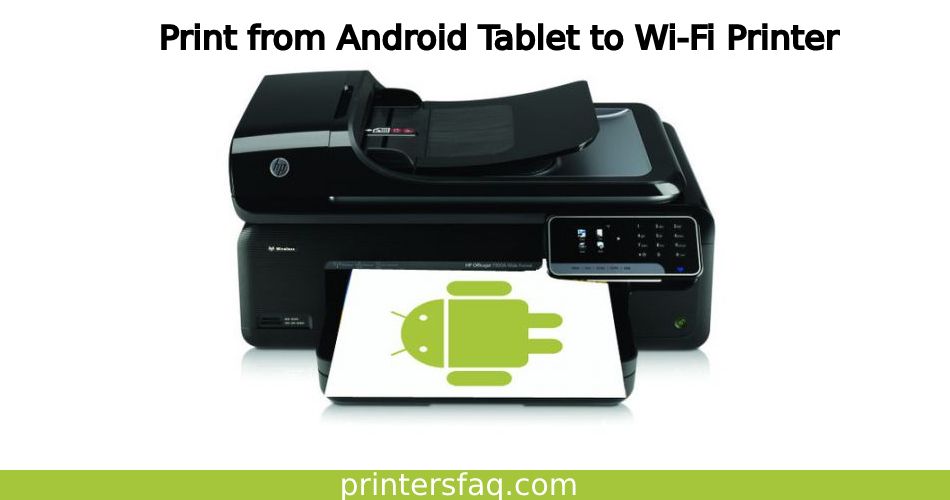
Previously, printing on Android devices required you to install the Google app and share all of the data that you needed to print with the app. But it isn’t exactly an obvious procedure, is it? The good news is that recent Android versions have a Google Print option, and most Android applications include a printing option incorporated with the app itself; the only need is that the app supports printing. Now, let me show you how to print from an Android tablet to a Wi-Fi printer.
How do I install and manage a printer?
In This Article
As I previously stated, Google Print is now included in your operating system. As a result, you no longer need to use the Google app to control your printing machines. Because your Android tablet or phone is no longer an independent device, all of the choices will be neatly tucked away in your settings menu.
Simply pull down your notification shade and select the cog symbol to access the settings menu, where you will find the print option. You may also search for the choice if it is tough to find by clicking the magnifying glass on the upper right-hand side of your screen. Once you’ve found the option, click on it, and you’ll see the Google Print option independent of which company’s device you’re using. Other device-specific choices, such as the Samsung print service plugin, are available, but because you can use Google Print on any device, we will stick with that.
Once you’ve selected the cloud print option, you’ll see a three-button overflow symbol in the upper right-hand corner of your screen. When you select that option, a drop-down menu will appear with the option to add a printer. When you select the Add Printer choice, your device will look for a printer on your local network. Make sure your printing device is linked to your local network or Wi-Fi, then connect your Android tablet to a Wi-Fi printer.
Printing Instructions
Now that you’ve added the printer to your phone, let’s look at how to print from an Android tablet to a Wi-Fi printer. Assume you really have to print some photographs from your photo app. The three button symbol is located in the upper right corner of your screen. There is a print option there. Printing documents and sheets takes an extra step because those applications include an Export & share option under which you may locate the print choice.
How to Use Google Cloud Print to Print
Google Cloud Print is a solution that enables you to print files from any device, anyplace – whether or not you’re connected to the same Wi-Fi network as the printer. It’s the ideal method to print from Android smartphones since it’s incorporated into the operating system, so there’s no need to download or operate any third-party software. To utilise Cloud Print, you must first complete a few steps, which are explained below. If Cloud Print isn’t already installed on your smartphone, you may get it from the Google Play Store.
Google Cloud Print Printer Addition
To utilise a printer with Cloud Print on Android, first add it to the service. Before you begin, ensure your printer is turned on and that both your printer and Android smartphone are linked to your Wi-Fi network.
- Navigate to the Settings app on your Android phone and look for “Printing.” Tap the Printer option that appears. This setting may also be found in Settings > Internet of things devices > Connection preferences > Printing.
- Select Cloud Print. There may be more alternatives on the list, and you may play with them if you like — but for now, we recommend sticking with Cloud Print.
- Select Add printer from the menu button in the upper right-hand corner.
- Cloud Print will look for printers that are linked to your Wi-Fi network. When you tap on your printer, it should be registered and ready to use.
How to Use Google Cloud Print to Print
You should be able to print a file after successfully adding a printer to Google Cloud Print. To print a document or image from your Android smartphone using Google Cloud Print, follow the instructions below.
- Go to the file or photo that you wish to print. This may be a message from the Gmail app, a Google Chrome picture, or anything else.
- If it’s accessible, hit the 3 menu button in the upper right-hand corner to locate an option to print or “Export” the document, or something similar. If it isn’t accessible, you may need to save a picture or file to your library or device and access it using the Android Files or Google Photos apps to print it.
- Select the Print option.
- Cloud Print should connect to the printer you’ve added automatically, but if you’ve added more than one, you’ll need to touch on the one you want to use.
- Select the number of copies to produce and the paper size. By tapping on the down arrow, you may also pick more alternatives. You may then select whether you want to print a color or black-and-white image, the page orientation, and so on.
- On the right side of the screen, tap the blue printer symbol.
How to Print from an Email Account on Android
Printer makers have been developing capabilities that provide printers with email addresses. For example, you may send an email to the printers with a document you wish to print, and it will print it automatically. Setting this up varies by manufacturer, so if you’re experiencing problems, we recommend consulting the handbook for your printer or contacting the manufacturer. We’ll go through how to send documents to the printer via email in this section.
Method 1
- Launch your email program and create a new email.
- In the “To” area, enter the printer’s email address.
- Click the “Attach” button. Based on your email client, this might be a paperclip or another icon.
- Go to the file you would like to print and select it. It might be in your phone’s default Files app, Google Drive, Google Photos, or a third-party app. You must know where it is in order to attach it and print it.
- After attaching the file, click the “Send” button.
Method 2
- Locate the picture or file that you wish to print. Navigate to the Files app, Google Photos, Google Drive, or a third-party app to do so.
- Launch the file.
- Select the “Share” option. The Share button consists of three dots connected by two lines. Alternatively, with certain programs, such as Google Docs, you might have to “Send a copy.”
- Scroll down and touch the icon for your favourite email client.
- In the “To” area, enter the printer’s email address.
- Click the “Send” button.
Android cellphones and tablets from Google
Printing is as simple as pressing the menu in your open text or photo and selecting Print on your Android phone. Check that your printer and smartphone are both connected to the same wireless network. Print, Select A Printer, and then All Printers from the menu of your open document. The Add Printer option may be found here. It will scan your wireless networks and identify the printers that are available to you!
Google has its own technology called Cloud Print that allows you to print from an Android handset to a wireless printer that is Cloud Print compatible.
If you don’t already have Cloud Based Print loaded on your Android smartphone or tablet, you can get it for free from the Google Play app store. To see if it’s installed, use the Settings app and choose Printing. You don’t have Google Cloud Print if it displays No Service Installed. Tap the settings menu in the upper right corner and choose Add Service. The Play Store will then open, where you may choose and install Cloud Print. Check that Cloud Print is also activated in the Printing menu of Settings.
The next step is to add your printer. Select Add Printer from the Settings menu in the upper right-hand corner. Now, follow the on-screen directions to wirelessly connect your printer. When you’re finished, you’re ready to print. Simply open the app you wish to print from and pick Print from the Options menu in the upper right-hand corner.
Whether your printer does not support Cloud Print, try to see if the manufacturer has a free app that allows you to print from your smartphone or tablet. Epson, HP, and Canon all provide apps that allow you to print from your smartphone or tablet.
Microsoft Windows Phone
Check to see if your printer maker has a free app – Brother and HP both provide applications for publishing from Windows Phone. If your smartphone and printer are both connected to the same wi-fi network, you may also print right from your open documents, like you do with Android.
Swipe to the left to start bringing up the Charms bar, then pick Devices to print from a Windows tablet. If you see your printer listed (it must be turned on), tap it and follow the on-screen directions to print. If no printers are shown, either your printer is not turned on or you are unable to print from the app you are using since not all applications enable printing.