Making copies on a Canon printer is easy but doing it in a convenient way is far for many people. Whether you need to photocopy important documents or simply make multiple copies of a flyer, understanding how to make copies on a Canon printer is essential.
Steps to make copies from your Canon printer
In This Article
- 1 Steps to make copies from your Canon printer
- 1.1 Step 1: Prepare Your Documents and Place Them on the Scanner Glass
- 1.2 Step 2: Access the Copy Function on Your Canon Printer
- 1.3 Step 3: Adjust Copy Settings According to Your Preferences
- 1.4 Step 4: Preview and Edit Your Copies
- 1.5 Step 5: Press the Start or Copy Button to Begin the Copying Process
- 1.6 Tips for Successful Copying with a Canon Printer:
- 1.7 Final Words
Step 1: Prepare Your Documents and Place Them on the Scanner Glass
- First, gather all the documents you need to scan. Make sure they are free from any staples, paper clips, or sticky notes that could interfere with the scanning process.
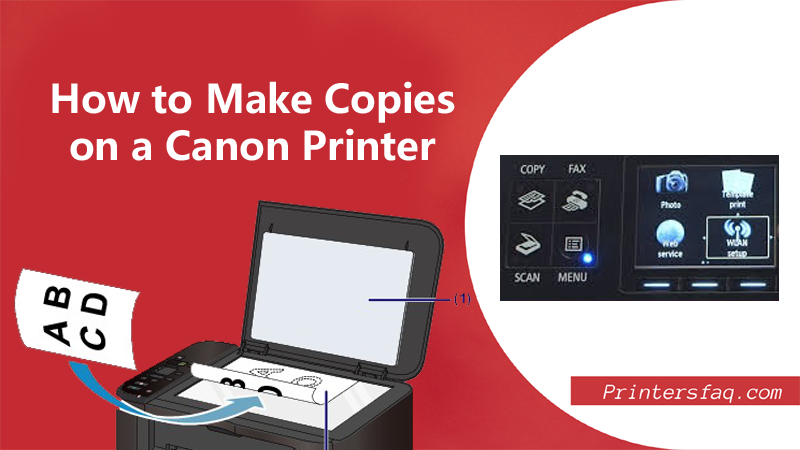
- Next, locate the scanner glass on your device. It is usually a flat surface where you will place your documents for scanning.
- Carefully place your document face down on the scanner glass. Make sure it is aligned properly and fits within the designated area. If you have multiple pages to scan, you can stack them one on top of another, but be mindful not to overload the scanner.
- Once your documents are in position, close the scanner lid or cover if applicable. This helps to prevent any light interference during scanning and ensures accurate results.
Now you’re ready to move on to the next step of the scanning process!
Step 2: Access the Copy Function on Your Canon Printer

- Navigate to the printer menu to find the copy function. Look for an icon or option that represents copying or duplicating documents. It might be labelled as “Copy” or have a picture of two overlapping sheets of paper.
- After that, select it by pressing the button on your printer’s control panel.
- This will take you to the copy mode where you can adjust settings and make copies of your documents.
Step 3: Adjust Copy Settings According to Your Preferences
- Now that you’re ready to print, it’s time to adjust the copy settings according to your preferences.
- Set the desired page quality and alignments accordingly.
- Next, let’s tackle paper size. you can choose from like letter size, legal size, or even custom sizes. Just select the one that suits your document perfectly.
- Lastly, The print quality adjustments. Want your copies to be crisp and clear? Opt for high-quality printing. If speed is more important than resolution, go for a lower-quality setting.
Step 4: Preview and Edit Your Copies
- Now that you’ve crafted your copies, it’s time to give them a quick preview before finalizing everything.
- This step is optional but can be quite handy to ensure that your copies are looking just the way you want them to.
- Most editing tools come with a preview function that allows you to see how your copies will appear in their final format.
- If you notice any areas that need some tweaking, don’t worry! Many editing options are available at your fingertips.
- You can easily adjust the brightness colors and contrast to make it more readable after copying.
Step 5: Press the Start or Copy Button to Begin the Copying Process
Now, this might seem like a no-brainer, but trust me, it’s always good to double-check before starting the copying process. Look for the “Start” or “Copy” button and tap on it.
By pressing this button, you’re initiating the copying process and telling your Canon printer to work its magic. It’ll start scanning your document and creating a perfect replica in no time.
So go ahead, press that button with confidence! Your Canon printer is ready and waiting to make copies like a pro.
Tips for Successful Copying with a Canon Printer:
- Avoid using wrinkled or torn documents: Smooth and intact papers give better results.
- Clean the scanner glass regularly: Dust particles can affect copy quality.
- Select the appropriate paper size and type: Ensure that it matches your original document.
- Rotate or resize: If necessary Rotate or resize your document using available options in the copy settings.
- Saving energy: If you’re done making copies, remember to turn off the printer.
Final Words
In conclusion to make copies on canon printer is, having a Canon printer with a built-in copier brings you the ultimate convenience when it comes to copying documents.
Gone are the days of searching for a separate copier or standing in line at the office supply store. With your Canon printer, you can easily and conveniently make copies right from the comfort of your own home or office.