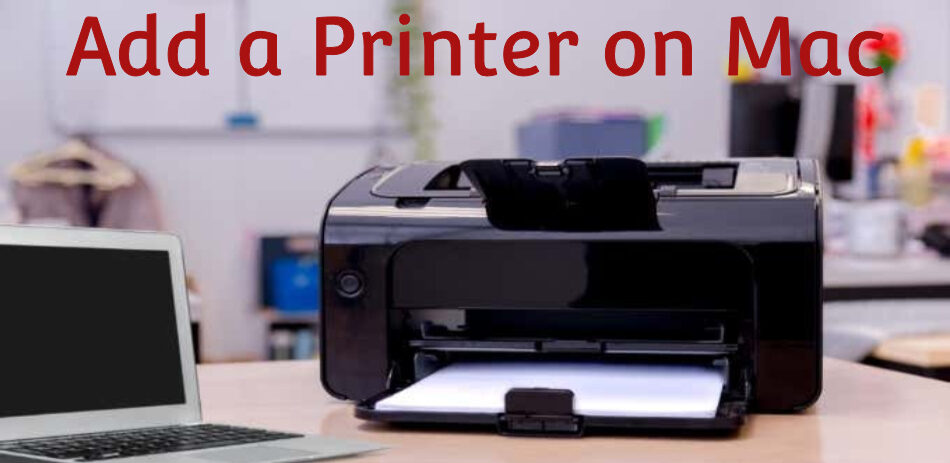
Did you recently buy a MacBook laptop and facing a problem to add a printer to a Mac. You constantly experience confusion while trying to install a wireless printer to your Mac for the first time.
In today’s digital era, a wireless printer for Mac users is a must-have. Wireless printers are increasingly popular for Mac devices because it makes print connection much simpler.
While connecting a printer to your Mac mainly depends on the printer that you are using. In case, the printer is a relatively new model then there is a chance that it supports Airprint.
If such a case appears, you can put up Airprint and finish your task within moments. In case, this does not support Airprint, after that, the user will need some printer drivers.
Such drivers can be found on your system or downloaded from the internet.
How to Connect a Wireless Printer to a Mac?
In This Article
1. Ensure that your wireless printer will work with Macs.
2. Turn on the power of the printer you have connected.
3. Open your Mac and click on “Apple” in the menu bar. Select “system preferences”.
4. Select “Printers & Scanners” OR “Print & Fax.”
5. Click the + button to add a printer.
6. It will automatically look for available printers on your Mac. Choose your wireless printer from the list.
7. To attach the printer to your Mac, click “Add”.
8. Adding your wireless printer has successfully been done for your Mac.
How to Add a Wireless Printer to a Mac?

In case, you need to learn How to add a wireless printer to a Mac, for that connect to the Wifi network first. Use the provided display on a Mac printer that has a built-in display to type the WiFi network’s name and password. On the bottom of the internet’s main router, you can find these facts.
After that, if the printer uses a Wifi Protected Setup (WPS), For information on how to add a printer, consult the router’s manual. Here are the steps to adding a printer to a Mac:-
- First of all, launch Airport Utility. It’s in the Utilities folder which is in the Application folder.
- Tap the base station in Airport Utility. Now, insert the password for the base station if the prompt appears.
- The next step is to access the menu bar and select Base Station Add WPS Printer.
- Then, as an alternative, you can choose PIN or Select and First Attempt as the WPS-acceptable connection type.
After that, select continue to add the printer to your Mac. If it is a “First try,” you can push the WPS button on the printer. Click done when the printer’s MAC address appears.
In the event that you chose “PIN,” type the printer’s PIN number. It ought to be included in the list in the printer’s documentation. Click Continue to add a printer after this. Clicking “done” is the last step.
- As the last step in the process of connecting a printer to a Mac, close AirPort Utility.
How to Add a Network Printer On Mac?

Before adding a printer you have to know how to add a network printer in Mac, the addition of a printer can be done in a similar way as a wireless printer. From Ethernet or via Wifi your printer may be connected to any one of these networks. This you may find in the Default Tab in the Printers and Scanners tab on your Mac.
Connect it directly through USB into the router to the Mac on the network if neither Ethernet nor WiFi are an option. Then add the printer by adding it from Printers and Scanners.
How to Find IP Address on a Mac?

In the Default Tab of the Printers and Scanners, you did not find the printer. In this situation, you need to connect via the IP tab. Search for the printer IP address to learn How to Add a Printer on Mac.
You can access this IP address by heading to the networked Mac. Using the Bonjour Browser, this needs to be set up for the printer. This is a default setting in Safari.
Go to Preferences > Advanced to turn it on as well.
The options are “Include Bonjour in the Favorites bar” or “Include Bonjour in the Bookmarks menu.”
As soon as you get the IP address, you can put it as it is in the address tab in the Printers & Scanners menu. Also, you can name the Printer. To do so from the drop-down list choose the printer and then tap on add.
Before printing several pages to add the printer, one of the best pieces of advice is to test the printer by making a test document in Text Edit.
Advantages of a wireless printer
Convenience: A wireless printer allows you to print wherever with the area of your Wi-Fi network without physical connectors required.
Flexibility: A wireless printer allows you to print from multiple Mac devices, thus, avoiding the process of file transference.
Space-saving: The wires-free printers make the environment neat, creating room on the table top.
Easy sharing: This makes it suitable for home use and even office network where other Mac users can easily share the printer.
Mobile printing: Most wireless printers are also capable of mobile printing, enabling you to print straight from your Mac as well as from your smartphone or tablet.
For any Queries call Printer Support is available 24×7.
In case, you are facing any kind of issue with How to add a printer on Mac. So in that case, you do call us at Printer Support for troubleshooting your problem.
Conclusion
Currently, if you are in the phase of selecting a new printer for home use. We suggest you an AirPrint-enabled model. The reason behind this is that you will evade the problem of manually downloading printer drivers and will save a lot of time on the setup process.
Use Net Spot to find you to locate the best location for your printer while using wireless printers. You’ll especially value Tooth fairy as a convenient connection toggle for Bluetooth printers. Naturally, once you unplug an outdated printer, clean up your Mac’s system by using CleanMyMac X. It will maintain the efficiency and cleanliness of your computer. With Setapp, you may test Clean MyMac X, Net Spot, and Tooth Fairy for free for a week.
FAQ
How to get my Mac to recognize my USB printer?
If your laptop doesn’t detect a printer, how can you locate it on a Mac? Disconnecting your printer, updating your Mac’s operating system, and then attempting to re-connect the devices via a USB cable are the first things to try. Additionally, confirm that your Mac was properly booted. Using a printer’s IP address will allow you to locate it and add it to your list of connected devices.
How to get my Mac to recognize my wireless printer?
Restart your Wi-Fi router first, then update the firmware. Use your printer in the same manner. If it doesn’t work, try resetting your printing system by clicking any printer’s name in the Printers and Scanners section of the System Preferences menu under the Apple menu. Select the Reset printing system option, but be aware that doing so will need you to reconnect all of your devices.
When your printer is too far from the router, it can sometimes cause issues with network connections. Check to see if your laptop is properly linked if you’re using Bluetooth.