Wireless printers, be it Wi-Fi or Bluetooth, may be placed virtually anywhere without the issue of wire clutter.
However, while they simplify your life once they’re up – and – running, the lack of a real link to your computer might make them a bit more difficult to set up.
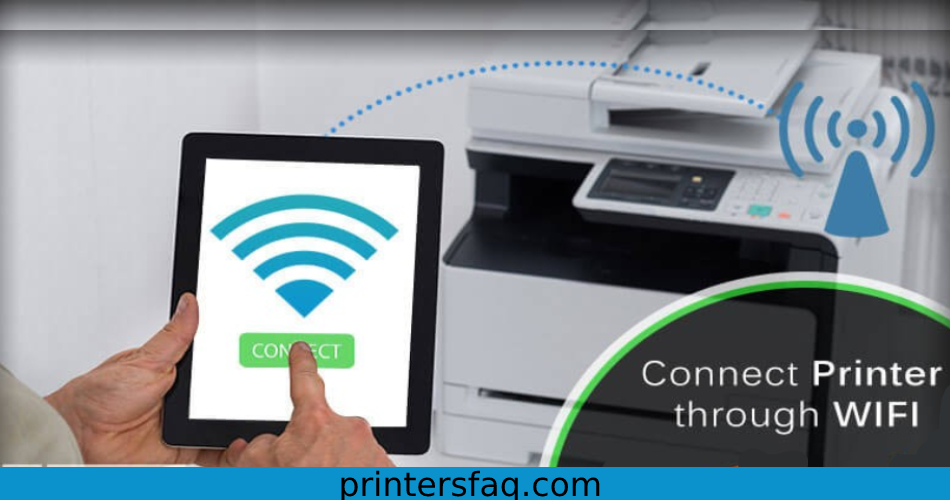
Today, we’ll look at how to connect a printer to a Wi-Fi network so you may print from your laptop, smartphone, or other wirelessly connected devices smoothly, a capability known as connecting printers through Wi-Fi.
It is nearly hard to locate modern printer models that do not include Wi-Fi capability. To simplify matters, the fast expansion of the digital world is replacing the usage of wires. That is why, if you are going to install your own technical equipment, you must be equipped for everything and then some. Today, more than 65% of consumers who purchase technology never use all of its functionalities because they are unfamiliar with the equipment’s specifications.
Tips for a Successful Printer Installation for Wi-Fi Access
In This Article
- Wait as the computer searches for Wi-Fi: The printer will prompt you to link to the closest signal; a “OK” signal is all that is required for the system to begin working with it. If you agree and the connection is blocked, you must input the key to free the printer; otherwise, it will only be committed to charging and you will be unable to connect it to the computer. We propose that you cancel the procedure and perform it manually in this case. If your wireless network, on the other hand, is unlocked, your device joins instantaneously.
- If your connection has to be unlocked, go to the advanced settings: When your printer is looking for a message and does not recognize any devices because they are all banned, cancel the operation by selecting “Cancel” or “Stop.” The printer application will then guide you to the settings tab (Wireless LAN setup). If not, do it by hand.
- Enter a list of accessible Wi-Fi networks or look for them under “other configuration.” Here, an option that says “Advanced configuration” or “Advanced setup” will appear, indicating that you are entering a list of available nearby Wi-Fi networks. You may select which one to work with using the data from your printer.
- To begin utilising this connection, select the Wi-Fi network and enter the password. After you’ve chosen your preferred network, the system will lead you to another page (security settings), where you may input the key in the WPA2-PSK (AES) box, the strongest permitted WIFI encryption. Following that, you will see boxes instructing you to input your password (Provide Password), where you will most likely need to enter a minimum of 8 characters and a maximum of 64 to install the security key. You’re ready to begin once you’ve input your information.
Configuring your printer
There is no one technique to set a wireless printer. Brother, Canon, Epson, and HP, among others, employ different processes to configure their printers on Wi-Fi networks or over Bluetooth. Within the same brand, the manner you get started varies per product.
The best recommendation is to review the product or user handbook for your printer. If you can’t find it, try looking for it online using the precise product name, which should be printed somewhere on the printer, either directly on the casing or on a sticker. Download user guides only from the manufacturer’s website.
Install a printer in Windows 10
Different printers have different Wi-Fi and Bluetooth setup procedures. To get started, consult your owner’s handbook.
Tip: You may need to update to the most recent version of Windows 10 to ensure you have the most up-to-date driver support.
Wireless printers
Any printer linked to the same local area network through Wi-Fi should be simply found by Windows 10.
Select Settings, Devices, and Printers & scanners from the Start menu. Wait for your printer to appear in the list before selecting it and clicking the Add device button.
If Windows is unable to locate your printer, click The printer that I want is not listed and follow the on-screen instructions.
Another option is to connect the printer to your computer or laptop using a USB connection. This can make the computer recognize the print and install the necessary drivers. After that, disconnect the printer from the Usb and check to see whether your computer still detects it.
The printer drivers should be downloaded and installed if they are not already present in Windows. If you don’t have them, you may acquire them on the manufacturer’s website.
Printers with Bluetooth
First, ensure that your printer is ready for new Bluetooth pairings. For further information, consult your owner’s handbook.
To turn on Bluetooth on your Windows PC, click the notification symbol in the bottom-right corner of your screen and make sure Bluetooth is turned on. To view the Bluetooth control, you may need to click Expand.
To locate the printer, open the Start menu and navigate to Settings, Devices, and Printers & scanners. Now, click Add a printer or scanner, and your printer should show in the list after a few moments. Select it and press the Add device button.
If you don’t already have the drivers, Windows will download and install them for you. If not, you can obtain them from the manufacturer’s website.
Connect your printer to your Mac
As long as they’re running the same version of macOS, there shouldn’t be any differences when setting up a new printer on different models of Macs. These are the steps for macOS 10.15. (Catalina).
Check to see whether your printer is compatible with Apple’s AirPrint for the simplest connection method (though non-AirPrint printers can still work using third-party software). Because AirPrint is built-in, there is no need to install and download drivers (for Wi-Fi, not Bluetooth), it is simple to use, and it requires little setup when connecting to new printers.
Apple maintains a list of Activities that can increase printers on its website, however most current printers support the feature.
Wireless Printers
If you do not have an AirPrint machine, go to the Apple menu, select System Preferences, and then Software Update to install all new updates. You may skip this step if your printer supports AirPrint.
Once your printer is linked to the same connection as your Mac, it should display in the Nearby printers area of any program’s print menu or Printers & Scanners app options.
If it does not, you can look for it. Select System Preferences, then Printers & Scanners from the Apple menu. If your print isn’t listed, click Add to have your Mac look for new printers. It could only take a couple of minutes. When it appears, choose your printer and click Add. Download any new software that is requested of you.
Another option is to connect the printer to your Mac using a USB cord. This can occasionally compel the Mac to recognize the printer’s presence and install any required software or drivers. After the installation is finished, disconnect the cable and check to see whether your Mac can identify it on the Wi-Fi connection.
If you have a non-AirPrint-enabled print and a Mac, you can connect the printer via USB connection to the Mac and then share the printer through Wi-Fi to other devices. Simply navigate to System Preferences, Printers & Scanners, choose your printer, and then tick the box next to ‘Share this printer on the network.’
Printers with Bluetooth
You can print documents without a Wi-Fi network if both your printers and Mac are Bluetooth-enabled.
If you do not have an AirPrint printer, go to the Apple menu, select System Preferences, and then Software Update to install any new updates. You may skip this step if your printer supports AirPrint.
Each printer has a unique method for configuring its Bluetooth connection, so consult your owner’s manual and follow the steps to make it ready to connect.
To add your printer to the list of printers on your Mac, go to the Apple menu, then System Preferences, and then Printers & Scanners. Click Default after selecting the Add button. Select your printer from the list and click Add.
If your printer does not appear, type its name into the search area. If it still does not display, you may need to download and install the most recent Bluetooth driver for your printer from the company’s website.
If asked, download and run new software.
Words to be aware of
When reading a printer’s setup instructions, you may come across the following terminology.
Driver
A print driver is a piece of software that runs in the background and instructs your device on how to utilise it. Without the driver, your computer, tablet, or phone will be unable to ‘drive’ the printer.
When you initially connect to a printer, your computer, tablet, or phone should immediately download or update the drivers, so you may require an internet connection during setup. However, because Windows comes with certain up-to-date printers pre-installed, you may be able to skip this step. Furthermore, Apple’s AirPrint technology eliminates the need for drivers.
If the installation does not happen automatically, you can look for the driver’s internet. Wherever feasible, only get them from the company’s website.