If you have an HP printer model and are an HP Instant Ink subscriber, you may have received the error message “The printer could not connect to online services.” “Web Services Problem” is another name for this problem. “There was an issue connecting to the Web Services server.” What does this signify, and how can you resolve it so that you may resume printing from your network printer?
Owners of HP Instant Ink-equipped printers may have noticed that the printer is unable to connect to the online services, prohibiting them from using their ink subscription. This guide will walk you through the procedures necessary to resolve this HP printer-specific issue. Ready? Let’s get this party started.
Quick Resolution for Printer Could Not Communicate To Web Services
In This Article
- 1 Quick Resolution for Printer Could Not Communicate To Web Services
- 2 HP Printer Web Services Troubleshooting
- 3 HP Printer Is Unable to Connect to Web Services:
- 4 How to Fix HP Printer To Connect to Web Services Error:
- 5 To troubleshoot a Web Services connection issue, use the following steps:
- 6 What Should You Do If Your HP Printer Isn’t Connecting to Web Services?
When the printer also couldn’t connect to web services, a message appears on your HP printer, most printer owners first think of their printer’s wireless connection. This is correct since your HP printer’s web services are linked to your wireless network and your HP Instant Ink account.
The printer was unable to connect to online services. Often, simply rebooting your printer and computer can resolve the issue. Check that the wires are securely connected and that the wireless communication icon light on your printer is not flickering or switched off.
After you’ve double-checked those items, try printing again. If the problem remains, there are a couple other options.
HP Printer Web Services Troubleshooting
Are you experiencing problems connecting your HP printer to the Instant Ink online services? Don’t be concerned. Here are some measures you may take to try to solve the problem.
1. Check the connection of your printer
Ascertain that your printer is linked to the internet by Wi-Fi or an Ethernet wire. Check to see whether your printer’s wireless icon light is steady/solid blue; this indicates that you are linked to your wireless connection. If your printer is not responding, go to this tutorial.
2. Restart your router and/or modem
If you have verified your printer’s wifi settings and everything indicates that you are connected, it is advised that you restart your wifi network at home or at your workplace to renew the connection between your devices.
3. Update the firmware on your HP printer.
Check for available firmware updates for your printer and apply them if necessary. You may test this on the display screen of your printer or the printer software application on your computer/laptop.
4. Log in to your HP Instant Ink account.
Sign in to your Instant Ink from HP account to ensure that it is still active and online. To prevent having your account stopped, settle any outstanding amounts.
5. Reset the wifi settings on your printer.
You should be able to locate a reset wifi settings option on the display screen of your printer. Connect your printer to the wireless network after this. Attempt to print a document from your PC, laptop, or mobile phone once connected.
6. Enable Web Services from the Integrated Web Server Caution:
This step may be too advanced for certain printer users; we recommend contacting HP Technical Support for assistance.
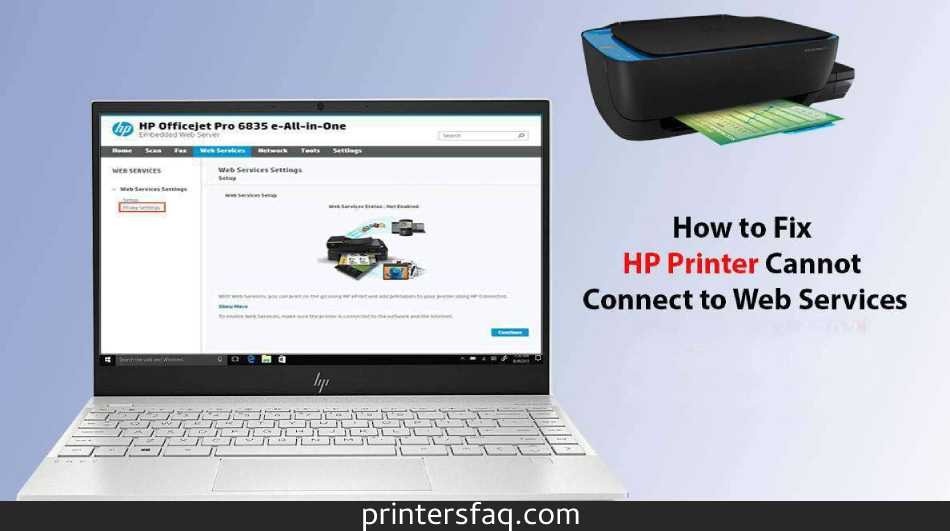
The Integrated Web Server may be accessed via the HP Smart app or by going to your printer’s homepage on your PC. You must locate your printer’s IP address on the printer’s display screen (e.g. 192.168.0.x).
Enter your printer’s IP address into your computer, and your printer’s homepage should appear. Go to the Web Services option on that page’s major menu, then click continue to activate Web Services.
I am not a subscriber to HP Instant Ink, but I still get the Printer Could Not Connect To Online Services Error Notification on my machine; what can I do?
Some HP printer users who are not HP Instant Ink members may still have this problem, and the easiest way to resolve it is to call HP Support and have them check to see if your current HP printer previously had an active Instant Ink subscription. They may need to reconfigure it on their server so that your printer is no longer linked to any HP Instant Ink accounts.
You may prevent receiving the error message The Printer Could Not Connect To Web Services by not enrolling in this ink refill programme. Use only standard HP authentic inks that do not bear the Instant Ink label. Using HP Instant Ink cartridges on printers that are not engaged in this programme might cause a range of faults, ranging from ink cartridge issues to seeing an online services error on your printer screen.
HP Printer Is Unable to Connect to Web Services:

Printers are an essential instrument in today’s world for producing high-quality text and graphics. Furthermore, it can scan photographs, photocopy documents, make faxes, and even connect wirelessly to your wifi or online services. Furthermore, wireless connections are more convenient to use than corded or USB connections. However, you may discover that your HP printer fails to connect to online services at times, particularly if this is your first effort. Let us go a bit more into the causes of this problem:
HP printers enable you to print from a remote location via the Internet. If your printer fails to publish or connect to online services, you may see one of the following error messages:
- If the server connection fails, just hit “Retry” or click OK to depart.
- Problem with web services:
- If you get this issue, ensure that you have active Internet connectivity and try again.
How to Fix HP Printer To Connect to Web Services Error:
- Check to see if the printer you’re using enables web services. You may check this using the control panel on your printer.
- Check to see if your wired or wireless link is in good working order and that the printer is properly connected.
- Reboot your computer, printer, and router all at the same time. This frequently aids in the resolution of connection difficulties.
- The web service should be activated by accessing printer EWS, which may resolve communication issues with the printer.
Even if the actions outlined above do not produce the intended results in terms of How to Fix HP Printer Cannot Connect to Web Services, you can contact customer service for more assistance. HP support team experts have the necessary technical skills to tackle any difficulties connected to How to Fix HP Printer Cannot Connect to Web Services or otherwise.
To troubleshoot a Web Services connection issue, use the following steps:
Step 1: Verify that the printer you’re using enables web services by checking the control panel.
Step 2: Verify that your wire and wireless connection is operational and that the printer is properly connected.
Step 3: Reboot the computer, printer, and router all at once; this can sometimes assist to resolve all difficulties.
Step 4: Start the web service by utilising the printer EWS, which may address connectivity issues with the printer.
Step 5: Look for the Internet proxy server settings that correspond to the printer EWS.
Step 6: By frequently updating printer firmware with the most recent upgrades, you may be able to remedy this issue.
Step 7: Update the router firmware, since an old one might compromise performance, security, or prevent the router from connecting to the internet.
What Should You Do If Your HP Printer Isn’t Connecting to Web Services?
1. Verify the Printer Connection
First, ensure that the printer is indeed linked to HP Web Services. When hooked in using a USB connection, the HP printer will connect to Web Services. Users may verify the printer’s connection status by accessing the Wireless Network or Settings menus on the printer’s LCD.
Then, when a printer is connected, customers should see a solid blue wifi icon light. If the light is not visible, users must connect the HP printer to Web Services.
2. Reboot the printer, router, and computer.
Restarting the network, printer, and computer sometimes help to resolve connectivity difficulties. First and foremost, turn off and disconnect the router.
Then, turn off the HP printer.
Turn off the computer or laptop.
Reconnect the router and power it on.
Turn the printer back on.
Then restart your computer or laptop.
3. From the Printer’s Embedded Web Server Webpage, enable Web Services
Users should consult their printer manuals for further information on printing a Network Configuration Page. When you’ve printed that page, proceed with the procedures below.
- In Windows, launch a web browser.
- Then, in the browser’s URL bar, enter the URL for the Embedded Web Server specified on the Network Configuration Page. That URL will be in the form of a number, such as http://169.172.123.45.
- Then, on the EWS screen that appears, pick a Web Services Tab.
- On the Web Services tab, press and hold the Activate or switch on button. The Web Services configuration process can then be used by users.
4. Modify the HP Printer’s DNS Settings
Some customers have reported that changing the DNS server for the HP printer to Google’s 8.8.8.8 IP address repaired the HP printer. The HP printer cannot connect to web services connection problems.
To do so, navigate to the Embedding Web Server page as described above. Then, on the left side of the Network tab, click Wireless. Choose the IPv4 tab, put 8.8.8.8 as the first DNS, and then click Apply. The printer was then set to use Google’s DNS rather than the router’s DNS server.