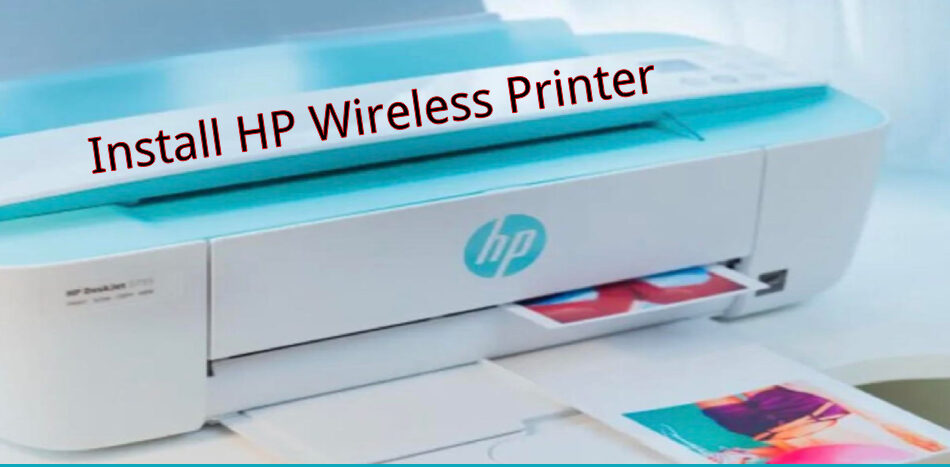
The procedure of installing an HP wireless printer on both Windows and Mac systems is quite simple. We will give detailed steps to follow for both devices in this manual. Note that the directions might be a bit different depending on the type of printer and the OS version.
How to install HP wireless printer on Windows
In This Article

Prepare for installation
Before starting the installation process, ensure that your printer is within range of your wireless network and that you have the following items ready:
- Same or shared wireless network.
- Set up a guide or printer’s user manual
- The installation CD of the printer itself or the last downloaded printer driver from the HP website
Connect the printer to the Wi-Fi
To connect your printer to the wireless network, follow these steps:
- Switch on your printer to a ready mode.
- Click the Wireless button or go to the Network menu on the printer control panel.
- Choose the Wireless Setup Wizard or other relevant option.
- Make sure you follow the instructions displayed on the screen to connect your printer to wireless. This will involve entering your network name (SSID) and password among other things.
Install the printer driver

When the printer is connected to the wireless network, proceed to install the printer driver on the Windows computer. You have two options for this:
Option 1: Using the installation CD:
- Put your computer’s CD/DVD installation disc into it.
- An automated installation wizard should be able to run itself. Alternatively, if this does not work go to the CD drive and run setup.exe.
- Install the print driver as per the on-screen guide. When prompted, ensure you select the wireless connection option.
Option 2: Obtain the most recent driver from the HP website.
- Launch a web browser on the HP Support site www.support.hp.com.
- Type your printer model into the search box and then pick the right printer from the search list.
- The “Software and Drivers” tab on the printer’s support page.
- Download and install the latest printer driver for your operating system.
- After downloading the driver, run the installer file and follow the screen prompts to install the printer driver.
Connect the printer to your computer Windows

Once you have installed the printer driver, you have to add the printer to your computer. Here’s how:
- Click the starting control panel on your computer.
- Select “Devices and Printers” or “Printers and Scanners”.
- Select “Add a printer” or “Add a device”.
- Windows will look at available printers. Pick your HP wireless printer from the list.
- Complete the printer installation process by following the on-screen instructions.
How to install HP Wireless Printer on Mac.

Prepare for installation

Before starting the installation process, ensure that your printer is within range of your wireless network and that you have the following items ready:
- A Mac computer on the same wireless network
- Setup guide or manual for a printer.
- CD that came with the printer or the HP website’s latest printer driver.
Connect the printer to the wireless connection.
To connect your printer to the wireless network, follow these steps:
- Turn on the printer and ensure the printer is ready.
- Go to the printer control panel and select either the wireless button or the network menu.
- Choose something like Wireless Setup Wizard.
- Connect your printer to the wireless network using the prompts displayed on the screen. During this, you might be requested to provide the network name (SSID) as well as the password.
Install the printer driver
After connecting your printer to the wireless connection, you can then go ahead and install the printer driver onto your Mac computer. You have two options for this:
Option 1: Using the installation CD
- Insert the installation CD into the computer’s CD/DVD Drive.
- This should automatically run the installation wizard. If not, open the CD drive and then run the setup.exe file.
- You will be guided through different installation steps on the screen. Once prompted, ensure to choose the wireless network choice.
Option 2: Obtaining the latest HP driver
- Launch your web browser and visit the HP Support page at www.support.hp.com.
- Search for your printer model in the box below. Select the right one from the search results.
- Click on the download page on the printer’s support site for the software and driver download section.
- Check the appropriate operating system and install the latest printer driver version.
- After the driver is downloaded, run the installer file and follow the on-screen prompts to install the printer driver.
Connect your Mac computer to the printer
Once you have installed the driver, you then need to add the printer to your Mac. Here’s how:
- Navigate to the Apple menu and click on “System Preferences.”
- Select “Printers & Scanners” or “Print & Fax.”
- To add another printer, simply click on the “+” icon.
- Mac will look for available printers. Choose an HP wireless printer from the list.
- Add the printer by clicking “add” to your Mac.
Congratulations! You can confirm that your HP wireless printer is properly installed on both Windows and Mac operating systems. You may now print wirelessly from your computer.