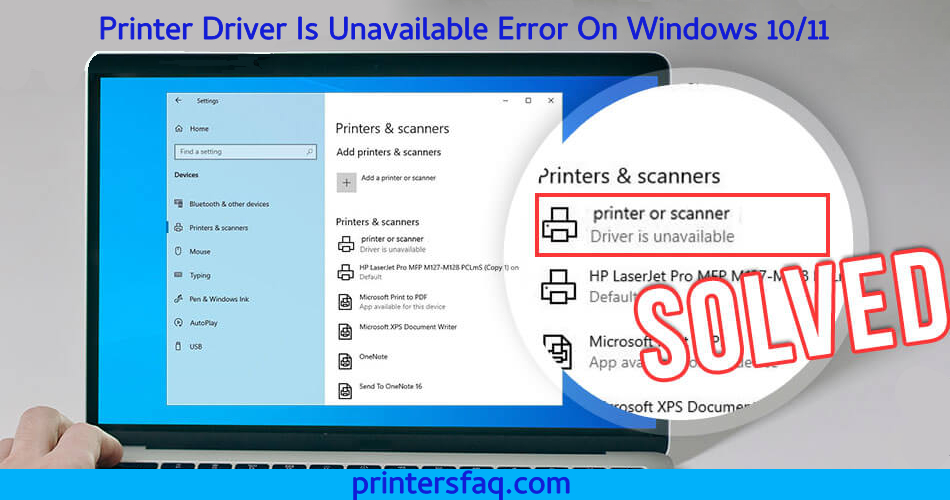
You may see an error message stating that your “Printer driver is unavailable” while using your printer. In this case, what should you do?
The printer is still a vital tool, particularly in the workplace. It allows you to print, scan, and copy documents, as well as share them with others. A functioning printer is critical; a malfunctioning one might generate bottlenecks.
If a dependable printer suddenly fails and displays that error message, it might be due to an outdated or mismatched driver. It’s possible that the printer driver developed a flaw and ceased responding to system commands.
Of course, not that every printer problem is caused by software. It might be the result of normal wear and tear on an outdated printing gear. When a printer is reactivated after a period of inactivity, it may perform poorly. Dust, dirt, paper scraps, and caked ink can potentially create blockages and damage to the printer.
Nonetheless, most of the time, the “printer driver is unavailable” error is caused by a software problem with the printer driver installed on the computer. If the issue is not rectified, you will be unable to print tasks.
What Does Driver Is Not Available Indicate?
In This Article
- 1 What Does Driver Is Not Available Indicate?
- 2 Install the most recent printer driver
- 3 Utilise the Printer Troubleshooter.
- 4 Print Spooler Reset
- 5 Windows Computer Update
- 6 Install Your Printer Again
- 7 The HP Printer Driver is no longer available.
- 8 The Canon Printer Driver is not available
- 9 The Epson Printer Driver is no longer available.
- 10 The Brother Printer Driver is not available
- 11 What Causes Windows 10/11 Printer Driver Unavailable Error?
- 12 Printer drivers that are out of date or corrupt
- 13 Printer settings that are incorrectly setup
- 14 A problem with Windows Update
- 15 A faulty print spooler service
- 16 How to Fix the Printer Driver Is Unavailable Error
- 17 Maintain the most recent versions of your printer drivers
- 18 Examine your printer’s settings
A printer driver is software that allows your computer and printer to connect. When you get the printer driver missing error, it signifies there is a communication problem between your computer and printer. An obsolete or faulty printer driver, damaged system files, or even a virus might cause this.
Basic Printer Maintenance
Before you begin trying to fix your printer software, perform a quick printer inspection on your printer. This might assist in identifying any potential issues that are causing your printer to stop operating. Here are a few steps to getting started with the basic print checkup.
- Start your printer.
- Check your printer’s screen for any display or button issues.
- Place any paper on your document feeder and then press the copy button. It makes no difference whether you copy in black and white or colour. You may choose either of them.
If you can successfully duplicate, you can go on to the more sophisticated troubleshooting methods listed below.
If you are unable to copy from your printer, you have a much larger problem and may need to have your printer serviced by qualified specialists.
How to Resolve the Printer Driver Is Not Available Error in Windows
There are a few methods you may attempt to resolve this issue. We’ll go through each one so you can pick the one that usually works for you.
Install the most recent printer driver
If your printer driver is out of date, this might be the source of the printer driver being unavailable. You may update your printer software by visiting the website of your printer manufacturer and downloading the most recent driver for your printer.
Utilise the Printer Troubleshooter.

Windows has a troubleshooter that may assist you in resolving a variety of issues, including printer driver missing error. Go to Settings > Update & Security > Troubleshoot to launch the printer troubleshooter. Then, under the “Find and repair additional issues” section, select “Printer.” Select your printer and allow the Windows troubleshooter to work its magic.
Print Spooler Reset
Resetting the print spooler might sometimes help you resolve the printer driver’s missing problem. Open the Run Command as administrator and run the following command to reset the print spooler: net stop spooler, then press Enter. Wait approximately 30 seconds, then type net start spooler and press Enter.
The Services window on your Windows PC is an alternative to the Command Prompt.
Enter services into the Start Menu.
msc and press the OK button. Scroll to the bottom of the window that appears and choose the Print Spooler service. Stop it by right-clicking on it. Wait a few moments, then right-click the Print Spooler service and choose Start. Shut off the Services window.
Windows Computer Update
If you continue to receive the printer driver missing issue, it is possible that you are running an out-of-date version of Windows. To update your Windows machine, navigate to Settings > Update & Security > Windows Update and select “Check for updates.”
Install Your Printer Again
If none of the previous alternatives work, you can reinstall your printer. This will install the most recent driver for your printer and may assist in resolving the printer driver issue.
The HP Printer Driver is no longer available.
If you have an HP printer and are still unable to print, you may be able to resolve the printer driver issue by installing and downloading the most recent HP printer driver from the manufacturer’s website.
We strongly advise manually installing the HP printer following the procedures above, particularly if you have a portable HP printer with you. This should help you resolve the printer driver is unavailable problem and restore your ability to print documents.
If it doesn’t work, you might try running the HP Print and Scan Doctor programme to resolve any printer issues. This utility is designed exclusively for HP printers that are experiencing printer driver issues.
The Canon Printer Driver is not available
If you have a Canon printer, you may try to resolve the driver issue by visiting their website and downloading the most recent Canon printer driver for your model. You may find Canon printer support information here.
Once you’ve downloaded the driver, follow the steps on the website or in the Readme file that comes with it to install it. Restart your computer after installing the updated driver and try printing with your Canon printer again.
The Epson Printer Driver is no longer available.
Depending on the type of your Epson printer, there are several ways to update your printer driver.
You may either go to their website and get the newest driver for your specific model, or you can install the latest driver for your printer using the Epson Connect Printer Setup Utility. This utility is frequently used to troubleshoot Epson printers.
If you have an old aged Epson printer, you can attempt the Epson LFP Remote Panel Utility to keep updating your printer driver.
The Brother Printer Driver is not available
Don’t panic if you’ve tried to install a Brother printer software on your computer but keep on getting an error message; you’re not alone. Many individuals have had this issue, and thankfully, there is a remedy.
The easiest approach to resolve this issue is to visit the Brother website and download the most recent driver for your specific printer model. After downloading the driver, follow the website’s installation instructions. Restart your computer after installing the updated Brother printer driver and try printing a document again.
The print spooler is unavailable problem on Windows can be caused by a number of factors, including:
Printer drivers that are out of date or corrupt
When an obsolete or damaged printer driver is installed, the printer driver becomes inoperable. Printer drivers must be kept up to date to maintain printer and computer compatibility. Outdated or faulty printer drivers can result in a variety of problems, including a printer that does not display in Printers and Scanners, unfinished print jobs, printing difficulties, and more.
Printer settings that are incorrectly setup
Improperly configured printer settings might occasionally result in the printer driver being unavailable. This can occur if the printer is not set even as the default printer or the incorrect printer driver is used.
A problem with Windows Update
If you receive the printer driver missing error after applying a Windows update, the update may have caused a problem with your printer driver. In this situation, you may either remove the update and see if that resolves the issue, or reinstall your printer driver on the upgraded Windows PC.
A faulty print spooler service
If you see an error message on your computer that says “The printer driver is unavailable,” there might be an issue with the print spooler function. This service manages print jobs on your computer, and if it becomes corrupted, it can result in a variety of printing difficulties, including the ability to print files from your computer to the printer.
You may avoid the printer’s driver from becoming unavailable on your computer by doing the following:
Maintain the most recent versions of your printer drivers
One of the most common reasons for this issue is the usage of outdated or faulty printer drivers. To keep your printer drivers up to date, go to the manufacturer’s website and download the most recent driver for your printer model, or use a tool to automatically update your drivers; most printer manufacturers have this feature built into the printer software that you install on your computer. during the initial printer setup.
Examine your printer’s settings
This issue can occasionally be caused by incorrectly configured printer settings. Open the Printer from The list control panel and ensure that your printer is configured as the default printer. You should also ensure that the suitable printer driver for your printer is selected.